
Table of Contents
- Why Securing Your Personal Email Account Matters
- Step 1: Create a Strong, Unique Password
- Step 2: How to Enable Two-Factor Authentication
- Step 3: Review and Manage Third-Party App Permissions
- Step 4: Recognize Signs Your Email Account Is Hacked and Recover Immediately
- Step 5: Set Up Account Recovery Options
- Step 6: Explore Best Private Email Services for Added Privacy
- Step 7: Use Hardware Security Keys for Maximum Protection
- Frequently Asked Questions
Last Updated: September 25, 2026
Your email is the gateway to your bank, social media, photos, and more. If someone gains access, they can reset passwords on all your other accounts and lock you out completely. The good news: to secure personal email account doesn't require advanced technical knowledge. Most people need just seven straightforward steps to dramatically reduce their risk of account compromise.
Why Securing Your Personal Email Account Matters
Your email is the master key to your digital identity. If hackers break in, they can access your bank account, steal your photos, impersonate you, and drain your financial accounts. Hackers target millions of accounts automatically using stolen password lists from past breaches. When you secure your personal email account, you're protecting every account tied to that email address.
Step 1: Create a Strong, Unique Password
Your password is your first line of defense. A strong password should be at least 12 characters long and include uppercase and lowercase letters, numbers, and symbols (@, !, #, $, %). Avoid dictionary words and personal information. Example: Tr0pic@lSunset#2024!Blue (strong) vs. password123 (weak).
Never reuse passwords across accounts, if one site is hacked, attackers try that password everywhere. Use a password manager (many are free) to store unique passwords securely.
Step 2: How to Enable Two-Factor Authentication
Two-factor authentication adds a second lock to your account. You enter your password, then a code sent to your phone or authenticator app. Only then can you log in.
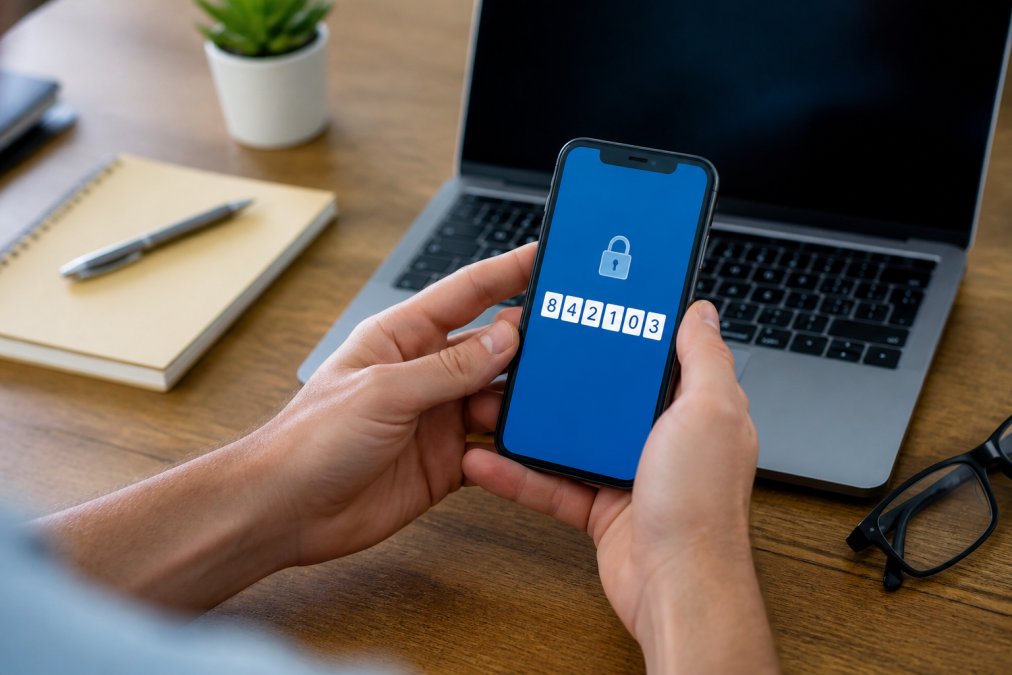
Most email providers offer two-factor authentication in their security settings. Sign in, go to Settings or Security Settings, find "Two-Factor Authentication" or "2FA," choose your method (text, app, or security key), and save your backup codes.
Understanding Your 2FA Options
Not all two-factor methods are equally secure. Here's how they compare:
Text Message (SMS) Codes: Easiest method, but vulnerable to SIM swapping attacks where an attacker convinces your carrier to transfer your number. Better than nothing, but the weakest option.
Authenticator Apps: Google Authenticator, Microsoft Authenticator, or Authy generate codes that change every 30 seconds. More secure than SMS because codes are generated locally and cannot be intercepted. Recommended for most users.
Hardware Security Keys (FIDO2/U2F): Small physical devices (YubiKey, Google Titan, Nitrokey) that you insert or tap to verify identity. Immune to phishing and SIM swapping. Cost $20-$80 and work with Gmail, Outlook, Yahoo, and most providers. Trade-off: you must carry them or store securely. For most users, an authenticator app provides sufficient security without the physical device requirement.
How to Set Up 2FA Step-by-Step
For authenticator apps: Open security settings, select "Authenticator app," scan the QR code with your phone, enter the generated code to confirm, and save backup codes.
For hardware security keys: Open security settings, select "Security key," insert the key into your USB port (or hold near phone), follow prompts to register, test by logging out and back in, and save backup codes.
Why You Should Avoid SMS-Only 2FA
If your email provider offers only text message codes, enable it anyway, it's still better than no 2FA. But as soon as you're able, switch to an authenticator app or hardware key. Many providers now allow you to add multiple 2FA methods. You can keep SMS as a backup while using an app or key as your primary method.
Step 3: Review and Manage Third-Party App Permissions
Many apps request permission to access your email. Each permission is a potential weak point. Sign into your email, go to Security or Connected Apps, review every app listed, and remove access from anything you don't recognize or no longer use. Be especially careful with apps requesting "full account access", most need only limited permission. Check this list at least twice a year, as apps change hands and security standards may decline.
Step 4: Recognize Signs Your Email Account Is Hacked and Recover Immediately
Early detection stops most compromises. Watch for: password reset emails you didn't request, login alerts from unfamiliar locations, contacts reporting strange emails from you, inability to log in, changed recovery options, unfamiliar connected apps, automatic message sending, or new forwarding rules.
Immediate Actions If You Suspect Compromise
Act immediately, the first few minutes are critical. If locked out, go to your provider's recovery page (Gmail: accounts.google.com/signin/recovery; Outlook: account.live.com/password/reset; Yahoo: login.yahoo.com). Verify your identity through backup email, phone, security questions, or backup codes. If unsuccessful, contact support with your recovery information ready.
Change your password from a different device if possible. Use a completely new password (at least 16 characters with uppercase, lowercase, numbers, and symbols) that you've never used before. Never reuse old passwords.
Attackers often set up email forwarding to copy your mail to their account. Check forwarding settings: Gmail (Settings > Forwarding and POP/IMAP), Outlook (Settings > Mail > Forwarding), Yahoo (Account info > Security and privacy > Forwarding addresses). Delete any unfamiliar forwarding addresses immediately.
Sign out all active sessions to force attackers to re-authenticate with the new password they don't have. Gmail: Security > Your devices > Manage all devices > Sign out unfamiliar devices, then "Sign out all other sessions." Outlook: Account.microsoft.com > Security > Recent activity > Sign out unfamiliar sessions. Yahoo: Account info > Security and privacy > Recent activity > Remove unfamiliar sessions.
Review every app and service connected to your account. Go to Security or Connected Apps, find "App Passwords," "Connected Accounts," or "Third-Party Access," and remove access from anything you don't recognize. Re-authorize apps you use but don't remember authorizing.
Attackers often change your backup email or phone number to lock you out. Verify your recovery settings: confirm your backup email and phone number are current and correct, and update security question answers if needed.
Enable or upgrade two-factor authentication. If using SMS, switch to an authenticator app or hardware security key. Two-factor authentication is the most effective way to prevent re-compromise.
Your computer may be infected with malware that captured your password. Run a full malware scan using Windows Defender or reputable antivirus software, quarantine threats, and restart. If uncomfortable, seek professional help.
After You've Recovered
Once you've completed these steps, monitor your account closely for the next few weeks. Set up email alerts for unusual activity if your provider offers them. Check your connected apps and active sessions weekly until you're confident the compromise is resolved.
If you continue to see signs of unauthorized access after taking these steps, your computer may still be infected or the attacker may have obtained additional information. In that case, consider changing your password from a different device (a phone or computer at a library or friend's house) and contact your email provider's support team for additional assistance.
Step 5: Set Up Account Recovery Options
Account recovery options are your lifeline if you get locked out. Without them, you could lose permanent access to your account.
Here's what to set up:
- A backup email address (preferably one you use less frequently)
- A phone number where you can receive text messages
- Security questions with answers only you know
- A list of backup codes stored somewhere safe
Your recovery phone number is critical.
Step 6: Explore Best Private Email Services for Added Privacy
If you want additional protection beyond standard email security, private email services offer end-to-end encryption and advanced privacy features.
Private email services are useful if you:
- Handle sensitive personal or financial information
- Worry about government or corporate surveillance
- Want maximum control over your digital footprint
- Communicate with others who also use encrypted email
Common features of private email services include:
- End-to-end encryption for all messages
- No ads or data collection
- Automatic deletion of old emails
- Ability to send self-destructing messages
- Protection against phishing attacks
Step 7: Use Hardware Security Keys for Maximum Protection
Hardware security keys are small physical devices that work like a digital lock and key. They provide the strongest form of two-factor authentication available.
Frequently Asked Questions
How can I tell if my email account has been compromised?
Signs your email account is hacked include unfamiliar login activity, password reset emails you didn't request, missing emails, or unauthorized account changes. Check your account activity log for logins from unfamiliar devices or locations. If you spot suspicious activity, change your password immediately, enable two-factor authentication if you haven't already, and review connected apps. Consider using a password manager to ensure all your accounts have unique, strong passwords.
Is two-factor authentication enough to protect my email?
Two-factor authentication significantly strengthens your security, but it's most effective when combined with other practices. Use a strong, unique password, review third-party app access regularly, and keep your recovery options current. Hardware security keys offer even stronger protection than app-based codes. For maximum security, layer multiple defenses: strong password plus two-factor authentication plus careful monitoring of account activity.
What's the difference between encrypted and standard email services?
Standard email services store and transmit your messages using basic encryption, which protects data in transit but leaves messages visible to the email provider. Encrypted or private email services use end-to-end encryption, meaning only you and your recipient can read the content. Best private email services like ProtonMail and Tutanota don't store readable copies of your messages on their servers. Choose encrypted email if you handle sensitive personal information or want maximum privacy.
What should I do right now to secure my personal email account?
Start with these three immediate steps: First, change your password to something strong and unique, at least 16 characters with uppercase, lowercase, numbers, and symbols. Second, enable two-factor authentication through your email provider's security settings. Third, review your account activity log for unfamiliar logins and check which apps have permission to access your email. If you're not confident doing this yourself, TonyV's Tech Repair offers step-by-step setup and guidance starting at $25 with our Basic Repair Service.