
Table of Contents
- Prepare Your Devices Before Transferring Photos
- Transfer Photos Using Cloud Storage for Photo Backup
- Transfer Photos Using a USB Cable Connection
- Use Wireless File Sharing to Transfer Photos Between Devices
- Troubleshoot iCloud Photo Sync and Common Transfer Issues
- Verify Your Photos After Transfer and Handle Metadata
- How to Transfer Photos to New Phone Across Different Operating Systems
- Frequently Asked Questions
Last Updated: September 18, 2026
Prepare Your Devices Before Transferring Photos
Set up both phones correctly to prevent connection issues and data loss.
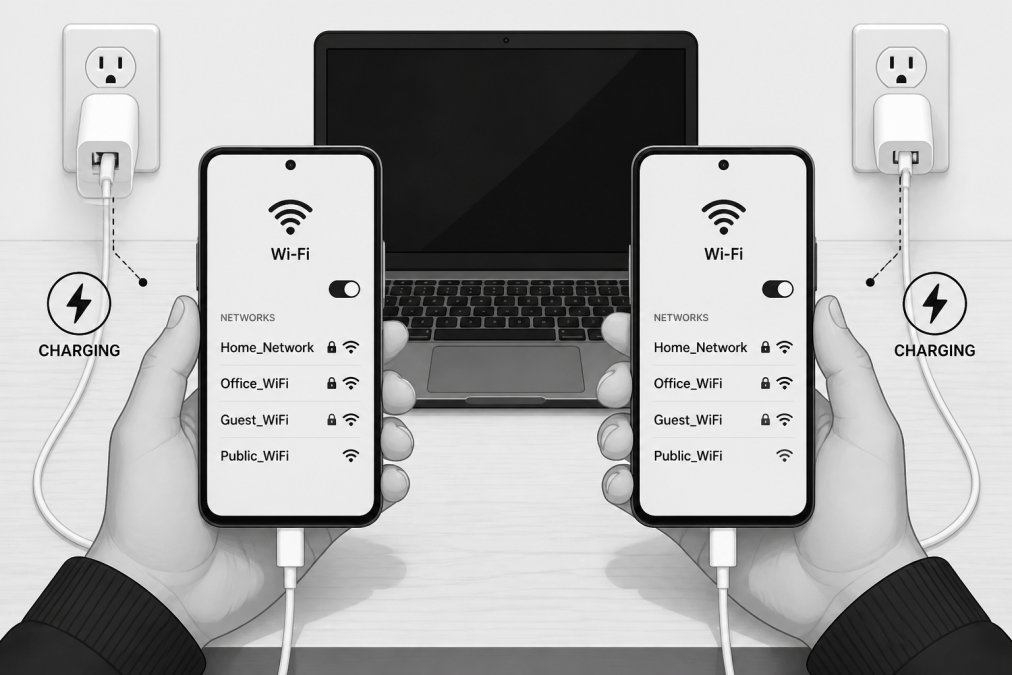
Ensure both devices are fully charged; transfers can take 30 minutes to several hours, and a dead phone will interrupt the process.
Connect both phones to the same Wi-Fi network and test the connection before starting.
Clear storage space on your new phone, especially if transferring 100GB or more.
Update both phones to the latest OS version to avoid compatibility problems.
Have your passwords and account details ready for cloud service authentication.
Transfer Photos Using Cloud Storage for Photo Backup
Cloud storage is the easiest method; services like Google Photos, iCloud, or OneDrive automatically sync photos across devices.
For Android, open Google Photos on your old phone, sign in, and enable "Backup and Sync" in settings to upload photos automatically.
On your new Android phone, sign in with the same Google account and your photos appear within minutes, with metadata preserved.
For iPhone, go to Settings > Photos > iCloud Photos and enable this feature to upload your library to iCloud.
On your new iPhone, sign in with the same Apple ID and enable iCloud Photos to download your library automatically.
For cross-platform transfers, use Google Photos on both Android and iPhone to upload and download your library.
Cloud services may compress photos to save space; check settings for an "original quality" option if you need uncompressed files.
Transfer Photos Using a USB Cable Connection
USB cable transfers give you direct control over which photos move and work well for selective transfers or when cloud services aren't available.
For Android to Android, connect your old phone via USB, open the DCIM folder, and copy the photos you want.
Connect your new Android phone and paste the photos into the DCIM folder.
For iPhone, use iTunes or Finder on a computer, select your old iPhone, and enable "Sync Photos" to choose folders to transfer.
Connect your new iPhone and repeat the sync process to transfer photos.
USB transfers preserve metadata and original quality, giving you control over which photos move, though they're slower than cloud methods.
Use Wireless File Sharing to Transfer Photos Between Devices
Wireless transfer avoids cables and works across operating systems via nearby device pairing or direct Wi-Fi.
For Android, use Nearby Share: open a photo, tap Share, select "Nearby Share," and tap your new phone (within 10 meters, Bluetooth enabled).
For iPhone, use AirDrop: open a photo, tap Share, select AirDrop, and tap your new iPhone (works best when both are unlocked and on the same Wi-Fi).
For cross-platform transfers, use third-party apps like Snapdrop or Send Anywhere to create temporary Wi-Fi connections between Android and iPhone.
Select multiple photos at once to transfer faster than moving them individually.
Troubleshoot iCloud Photo Sync and Common Transfer Issues
Transfer failures usually stem from connectivity, authentication, or security issues. Here are solutions for common problems:
Connection drops: Move closer to the router or restart it and both phones. Use private home Wi-Fi for sensitive transfers; public Wi-Fi exposes photos to interception.
Photos don't appear on new phone: Wait 15-30 minutes for sync to complete. If they still don't appear, sign out and back into your cloud account and verify you're using the same credentials.
Tony's Tech Installation/Setup →
iCloud shows "Waiting": Your old iPhone needs more iCloud storage. Go to Settings > [Your Name] > iCloud > Manage Storage to delete files or upgrade your plan.
Device Not Recognized: Try a different USB cable (damaged cables are the most common cause). Restart both devices and update your computer's OS. Use original or certified cables only.
Blurry or low-quality photos: You used optimized storage. Change cloud settings to "Download and Keep Originals" instead of "Optimize Storage."
Third-party app transfers fail: Verify both devices are on a stable Wi-Fi network with at least 5 Mbps speed. Check app permissions in Settings > Apps > [App Name] > Permissions and enable Photo Library access.
Missing metadata: Verify cloud backup is set to "Original Quality." For USB transfers, copy directly from the DCIM folder. Use Google Photos to restore location and date information if needed.
Security: Avoid public Wi-Fi for photo transfers; use home Wi-Fi, a mobile hotspot, or a VPN. Cloud services like Google Photos and iCloud use encryption, making them safer than direct wireless transfers.
Third-party apps: Verify they use encryption by checking privacy policies for "encrypted transfer" or "secure connection" language.
Test your connection before large transfers by opening a web browser on both phones to confirm stable, fast speeds.
Verify Your Photos After Transfer and Handle Metadata
After transferring photos, verify everything arrived correctly and that metadata (dates, locations, camera info) was preserved.
Count photos: Go to Photos > Albums > All Photos and verify the count matches your old phone. For 100GB+ libraries, wait 30-60 seconds for the final count.
Check metadata: On iPhone, swipe up on a photo to see date and location. On Android, open a photo in Google Photos and tap the info icon (i). If dates are blank, metadata wasn't preserved.
Why metadata is lost: Cloud services strip EXIF data with "Optimized" storage; USB transfers lose it without proper file properties; third-party apps often don't preserve location data.
Recover metadata: Upload photos to Google Photos, which can restore approximate dates based on file creation timestamps, especially for recent photos.
Preserve EXIF data: Use Google Photos or OneDrive for cross-platform transfers. For USB transfers, copy directly from DCIM on Android or use iTunes/Finder on iPhone. Avoid format conversion.
Verify formats: Photos should be JPEG (Android) or HEIC (iPhone). Delete unfamiliar formats like .tmp or .bak files. Open random photos to confirm they display correctly.
Test cloud sync: Open your cloud app and take a test photo to verify it uploads automatically.
For 100GB+ libraries, verify:
- Spot-check photos from different date ranges
- Verify 10 random photos have correct dates and locations
- Confirm video files transferred
- Test search by date functionality
Compare file sizes: If your new phone shows significantly less storage than your old phone, photos were compressed. Check cloud settings and select "Download and Keep Originals" if needed.
Verify location data: On iPhone, go to Photos > Albums > Places. On Android, open Google Photos and tap search > Places. If empty but you have geotagged photos, metadata was lost.
Before deleting from your old phone, complete verification. Keep the old phone for at least one week to confirm everything works on the new device.
How to Transfer Photos to New Phone Across Different Operating Systems
Cross-platform transfers require extra steps, but are straightforward with the right approach.
Android to iPhone: Upload photos to Google Photos on your Android phone, then install Google Photos on your iPhone and sign in with the same account to download them.
| Transfer Method | Best For | Speed | Preserves Metadata |
|---|---|---|---|
| Cloud Storage | All users, large libraries | Fast (background) | Yes |
| USB Cable | Selective transfers, original quality | Medium | Yes |
| Wireless Sharing | Quick transfers, nearby devices | Fast | Yes |
| Cross-Platform Apps | Android to iPhone, iPhone to Android | Medium | Yes |
Frequently Asked Questions
What's the fastest way to transfer thousands of photos to a new phone?
Cloud storage methods like Google Photos or iCloud are fastest for large libraries because they upload in the background and sync automatically. For 100GB+ of photos, enable automatic backup on your old phone, then sign into the same account on your new phone, photos download as needed without manual selection. USB cable transfer works quickly for smaller batches (under 5GB) but requires manual file selection. Wireless transfer is convenient but slower, typically 5-15 MB per second depending on your Wi-Fi network speed.
Can I transfer photos without using a cloud service?
Yes. Use a USB cable to connect your phone directly to a computer, then drag photos into a folder. Alternatively, use wireless file sharing apps or Bluetooth for smaller batches. However, cloud backup protects your photos if your device fails and makes them accessible from any device. Many people combine methods: use USB for immediate transfer, then set up cloud synchronization for ongoing backup and peace of mind.
Why haven't my photos transferred to my new phone?
Common causes include incomplete Wi-Fi connection during cloud sync, authentication errors (wrong password or two-factor code), storage capacity issues on the new phone, or metadata conflicts if transferring between different operating systems. Check that both devices are on the same Wi-Fi network, verify your login credentials, and ensure your new phone has enough free storage. If using iCloud photo sync, wait 24 hours, large transfers take time. Restart both devices and try again if the transfer stalls.
Does transferring photos preserve metadata and EXIF data?
Cloud services like Google Photos and iCloud preserve most metadata automatically, including timestamps and location data. USB cable transfer and wireless file sharing also preserve original quality and EXIF data as long as you don't compress files during transfer. Some older photo apps may strip metadata during sync, so check your app settings. If metadata matters for organization or editing, avoid file compression and use cloud backup or direct USB transfer rather than third-party apps.