
Table of Contents
- What You Need Before Updating Your Smartphone
- How to Back Up Phone Data Before Update
- Navigating to System Settings for Updates
- Checking Your Current OS Version
- How Long Does a Phone Software Update Take
- Automatic vs Manual Update Toggles
- What to Do If Phone Update Fails
- Post-Update Optimization and Security Patch Verification
- Frequently Asked Questions
Last Updated: October 2, 2026
What You Need Before Updating Your Smartphone
To update smartphone software safely requires proper preparation. Most people skip the prep work and end up with failed updates or lost data.
Three essentials: battery power, stable internet, and free storage space. Without them, you risk a bricked device or corrupted files.
Check Your Battery Level
Charge your phone to at least 80% before starting, some devices require 100%. A dead battery mid-installation corrupts system files. Plug in and wait; the charging time is worth it.
Ensure a Stable Wi-Fi Connection
Connect to your home Wi-Fi network with a strong signal (three or four bars). Mobile data is too unreliable. Test your connection by loading a website quickly before starting.
Verify Available Storage Space
Check your storage in Settings > Storage or About Phone. You need at least 2-3 GB free. If short on space, delete old apps, photos, or videos, then check again before proceeding.
How to Back Up Phone Data Before Update
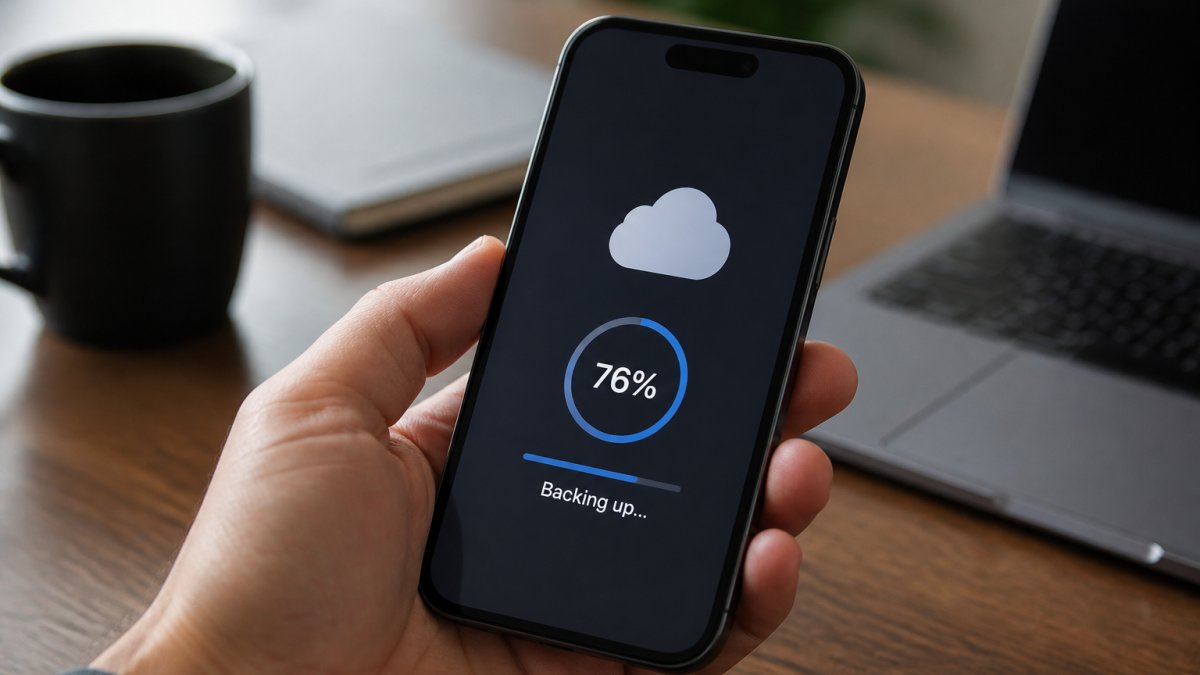
Back up your data before updating. If installation fails, you'll lose contacts, photos, messages, and app data. A complete backup takes 10-30 minutes and prevents data loss.
Cloud Backup Options
Cloud backup runs automatically in the background.
Android: Settings > Accounts > Google Account > Account Sync. Toggle on Contacts, Calendar, Gmail, and Google Drive.
iPhone: Settings > [Your Name] > iCloud > toggle on iCloud Backup > Back Up Now.
Verify backup completed: On Android, open Google Drive and check the backup timestamp is recent.
Local Backup Methods
Local backup gives you offline access to your files.
Windows: Connect via USB. Android: copy DCIM and Documents folders to your desktop. iPhone: open Finder, select device, click "Back Up Now."
Mac: Connect via USB.
Verify: Spot-check files copied correctly and count files in your phone's photo folder versus the backup folder, they should match.
Hybrid Backup Strategy (Recommended)
Combine both methods: enable cloud backup for accounts and app data, then do a local backup of photos and documents. This two-layer approach protects against single-point failure. Total time: 15-30 minutes.
Navigating to System Settings for Updates
Finding the software update menu is straightforward once you know where to look. The path is similar on most devices, though the exact names vary slightly.
Finding Settings on Your Device
Open Settings (gear icon). You're now in system settings where all device controls live.
Locating the Software Update Menu
Scroll down and look for "About Phone," "System," or "Software Update." Tap it, then tap "Check for Updates" or "Download and Install." Your device will check for and download new versions automatically.
Checking Your Current OS Version
Find your current OS version in Settings > About Phone or System Information. Write it down. After updating, return to this screen, the version number will be different, confirming success.
How Long Does a Phone Software Update Take
Most installations take 15-45 minutes. Plan ahead and don't rush the process.
Factors That Affect Update Speed
Update size matters most: security patches take minutes, major OS upgrades take an hour or more. Internet speed, processor speed, and free storage space also affect installation time.
What to Expect During Installation
When you tap "Install" to update smartphone software safely, your phone will restart and show a progress bar. Don't turn it off or unplug it. The screen may go dark and restart multiple times, this is normal. Once complete, you'll see your lock screen.
Automatic vs Manual Update Toggles
You can set your phone to update automatically or do it manually yourself. Each approach has advantages and drawbacks.
When to Use Automatic Updates
Automatic updates happen when plugged in and on Wi-Fi, usually at night. This is convenient but you lose control over timing.
When to Choose Manual Updates
Manual updates let you control timing, ideal if you need your phone for work. However, they require discipline to check and install regularly.
What to Do If Phone Update Fails
Update failures happen, but they're usually fixable. The key is knowing what went wrong and how to recover.
Common Reasons Updates Fail
Common causes: dead battery mid-installation, poor Wi-Fi connection, insufficient storage space, or corrupted files.
Troubleshooting Steps for Failed Updates
If your update fails, don't panic. First, charge your phone fully and try again.
Check your Wi-Fi connection. Move closer to your router. Restart your router if needed.
Clear some storage space. Delete apps or files you don't need.
If it still fails, restart your phone completely. Turn it off. Wait 30 seconds.
Rollback and Recovery Options
If an update installs but causes problems, you can sometimes roll back to the previous version.
Go to Settings and look for "System Recovery" or "Reset." Some devices let you restore from backup.
Before attempting a rollback, back up any new data you created after the update. A factory reset erases everything on your phone.
If your phone won't turn on at all, you may need professional help. This is where a service like TonyV's Tech Repair's Emergency/Same-Day Repair becomes valuable. We can diagnose the issue and recover your device without losing your data.

Post-Update Optimization and Security Patch Verification
After your update completes, the work isn't finished. Many users experience battery drain, app crashes, or sluggish performance in the hours and days following an update. These issues are usually fixable with proper post-update optimization. Taking 15 minutes to verify and optimize your device prevents frustration later.
Verifying the Update Installed Correctly
First, confirm the update actually succeeded and didn't partially fail.
Go to Settings and navigate to About Phone (Android) or General > About (iPhone).
Open your most-used apps (email, messaging, social media, banking) and test basic functions. Send a test message.
Verify your data is intact. Go to your photo gallery and scroll through several photos.
Understanding and Fixing Post-Update Performance Issues
Battery drain: After an update, your phone may drain battery faster than usual for 24-48 hours (If the battery in your iPhone or iPad drains too quickly). This is because the system is indexing files and apps in the background. To speed this up, go to Settings > Battery or Settings > Device Care > Battery. Look for "Optimize Now" or similar. Tap it and let it run. Then plug your phone in and leave it overnight. The battery drain should return to normal by the next day.
App crashes or freezing: If apps crash after an update, the app's cache may be corrupted. Go to Settings > Apps (or Application Manager).
Slow performance or lag: Your device's cache partition may be full with outdated files from the old OS version. Clearing it improves speed.
Clearing Cache and Optimizing Performance Systematically
After an update, perform a full cache clear to remove temporary files from the old OS version.
On Android: Go to Settings > Storage > Cache Memory (or Cached Data).
On iPhone: Go to Settings > General > iPhone Storage.
After clearing cache, restart your phone.
Identifying Fake Update Notifications and Security Verification
Scammers sometimes send fake update notifications to trick you into installing malware.
How to spot a fake update notification:
- It appears in a web browser or pop-up ad (real updates come from Settings only)
- It arrives via text message or email with a link to click (legitimate updates don't require clicking external links)
- It promises to "speed up" or "clean" your phone (real updates focus on security and OS features)
- The notification appears outside your Settings app and asks you to download something
Safe update verification: Always go directly to Settings to check for updates. Never click links in notifications, emails, or text messages claiming your phone needs an update.
Verify security patches: After updating, confirm you have the latest security patch.
Frequently Asked Questions
Is it safe to update phone software?
Yes, updating your phone software is safe when you follow proper precautions. Software updates include security patches that protect your device from vulnerabilities and threats. Always back up your data before updating, ensure your battery is charged to at least 50%, and use a stable Wi-Fi connection. These steps protect your device stability and data integrity during the installation process.
What should I do before updating my phone software?
Before updating, back up all your important data using cloud storage or a computer. Check that your battery level is above 50% and connect to a stable Wi-Fi network. Clear some storage space if your device is nearly full, as updates require temporary space during installation. Avoid using your phone during the update process. These preparations help prevent update failures and protect your data.
Does updating my phone delete my photos and apps?
No, a standard software update will not delete your photos or apps. Your personal files, photos, and installed applications remain intact after an operating system upgrade. However, it's always wise to back up your data before any major update as a safety precaution. If an update fails and you need recovery, having a backup ensures you don't lose anything important.
Can a phone be too old to update?
Yes, older phones may eventually stop receiving software updates. Device manufacturers typically support phones for 3-5 years with security patches and OS upgrades. Once your device reaches end-of-life, no new updates become available. Check your device compatibility in system settings to see if updates are still available for your phone. If updates aren't available, consider TonyV's Tech Repair's Monthly Tech Support Plan for ongoing device maintenance and security guidance.