
Table of Contents
- Start With the Basics: Power Cycle Your Router and Modem
- Check Physical Connections and Cables
- Device Can't Detect WiFi Network: Network Discovery Issues
- WiFi Connected but No Internet: Diagnosing the Real Problem
- Slow WiFi Troubleshooting: Signal Strength and Interference
- WiFi Keeps Disconnecting: Fixing Intermittent Connection Loss
- When to Seek Professional Help
- Frequently Asked Questions
Last Updated: October 7, 2026
Start With the Basics: Power Cycle Your Router and Modem
The first step in troubleshooting common home wifi problems is the simplest one: restart your equipment. Most wifi issues resolve with this single action.
Here's how to do it correctly:
- Unplug your modem from the power outlet
- Unplug your router from the power outlet
- Wait 30 seconds (this matters, it clears the device memory)
- Plug the modem back in first
- Wait 2-3 minutes for it to fully restart (lights will stop blinking)
- Plug the router back in
- Wait another 2-3 minutes for the router to boot up completely
Don't rush this process. Waiting the full time prevents the restart from failing halfway through. Your devices need time to reinitialize their network settings properly.
Once both devices are fully powered on, try connecting to your wifi again. Check if your devices can find the network and connect without issues. If your problem is solved, you're done.
Check Physical Connections and Cables
Physical problems cause more wifi issues than most people realize. Loose cables, bent connectors, or damaged wires can cut your internet speed or drop your connection entirely.
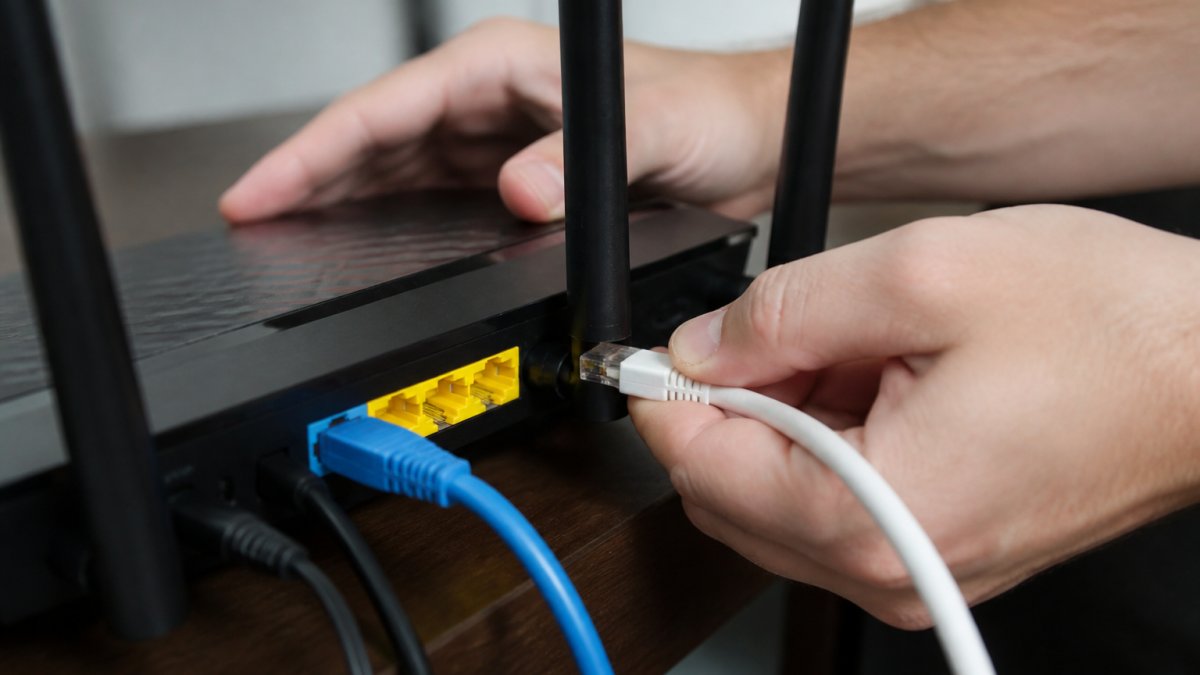
Inspect these connections carefully:
- Modem to wall outlet: The cable from your wall should be firmly seated in the modem's port. Push it in until you hear or feel a click.
- Modem to router: If you're using an Ethernet cable (which we recommend for stability), check that it's fully inserted on both ends.
- Power cables: Both devices need secure power connections. A loose power plug can cause intermittent restarts.
- Ethernet cable condition: Look for bent pins, crushed sections, or visible damage along the cable length.
If you're using an older or damaged cable, consider replacing it. A high-quality Ethernet cable like the Vention Cat7 Ethernet Cable supports speeds up to 10 Gbps with shielded protection against interference, perfect for home networks that need reliability.

Also check for water damage or debris around ports. Dust buildup can prevent proper connections. Use a dry cloth to gently clean the connectors if needed.
Device Can't Detect WiFi Network: Network Discovery Issues
When your device can't find your wifi network at all, the problem usually falls into one of two categories: your network isn't broadcasting, or your device isn't searching properly.
Check if your network is broadcasting:
Your router has a setting that controls whether it shows your network name (SSID) to nearby devices. If this is disabled, devices won't see your network even though it's running.
- Look at your router for an SSID button or check your router's admin panel (usually accessible at 192.168.1.1 in your browser)
- Make sure "SSID broadcast" is enabled
- If you recently changed this setting, re-enable it
Restart network discovery on your device:
Sometimes your device stops searching for networks properly. A quick reset fixes this:
- Windows: Go to Settings > Network & Internet > Status > Network reset > Reset now
- Mac: System Preferences > Network > WiFi > Advanced > Remove your network > Apply
- iPhone/iPad: Settings > General > Reset > Reset Network Settings
- Android: Settings > System > Reset > Reset WiFi, mobile & Bluetooth
After resetting, your device will forget all saved networks. You'll need to reconnect to your wifi and enter your password again.
WiFi Connected but No Internet: Diagnosing the Real Problem
This is one of the most frustrating issues: your device shows a strong wifi connection, but you can't load websites or apps.
This situation has three possible causes:
1. Your internet service is down
Contact your internet service provider to check for outages in your area. You can also test this by connecting a device directly to your modem with an Ethernet cable.
2. Your modem lost connection to the ISP
The modem and router communicate with each other, but your modem may have lost its connection to your internet provider's network.
3. Your router's WAN port is misconfigured
The WAN (Wide Area Network) port on your router connects to your modem and brings internet into your network.
Slow WiFi Troubleshooting: Signal Strength and Interference
Slow wifi usually means weak signal strength or interference from other devices. Your network is working, but data moves slowly because the connection is struggling.
Test your wifi speed first. Use a free tool like Speedtest by Ookla to measure your actual download and upload speeds. Compare this to your internet plan's promised speeds. If you're getting 30% or less of your promised speed, signal or interference is the problem.
Common sources of wifi interference:
- Microwave ovens (strongest interference source)
- Cordless phones and baby monitors
- Bluetooth speakers and headphones
- Neighboring wifi networks on the same channel
- Large metal objects and thick walls
Improve Router Placement for Better Coverage
Your router's location dramatically affects signal strength throughout your home. The best placement is central and elevated.
Place your router:
- In a central location in your home (not in a corner or closet)
- On a shelf or table at least 3-4 feet high
- Away from walls, metal objects, and large appliances
- Away from your microwave, cordless phones, and other 2.4 GHz devices
- In an open area with clear line of sight to where you use wifi most
Avoid placing your router:
- Inside a cabinet or enclosed space (blocks signal)
- On the floor (signal travels better upward and outward)
- Next to your microwave or cordless phone
- Behind metal filing cabinets or water tanks
- In a corner of your home
If you have a large home and one router can't reach all areas, consider adding a second router or mesh network system. Mesh networks use multiple devices to blanket your entire home with strong signal.
Vention Cat7 Ethernet Cable — 10Gbps SSTP RJ45, Flat or Round, 0.3m–20m →
Switch Between 2.4 GHz and 5 GHz Bands
Most modern routers broadcast on two frequencies: 2.4 GHz and 5 GHz. Each has different strengths.
2.4 GHz band:
- Longer range and better wall penetration
- More interference from other devices (microwaves, cordless phones, neighbors' networks)
- Slower speeds but more stable connections
- Better for devices far from the router
5 GHz band:
- Shorter range but much faster speeds
- Less interference (fewer devices use this frequency)
- Better for devices close to the router
- Ideal for streaming video or gaming
Check your router's admin panel to see both networks. If your router broadcasts both, try connecting to the 5 GHz network if you're close to the router and experiencing slowness. If you're far away or have weak signal, switch to 2.4 GHz for better coverage.
If your router allows it, name your 2.4 GHz and 5 GHz networks differently (like "Home-2.4" and "Home-5"). This makes it easy to choose the best network for your location and device type.
WiFi Keeps Disconnecting: Fixing Intermittent Connection Loss
Intermittent disconnections are frustrating because they're unpredictable. Your wifi works fine for a while, then suddenly drops and reconnects.
This problem usually stems from one of these causes:
Weak signal in that location
If disconnections happen in a specific room or area, weak signal is likely the culprit.
Too many devices on your network
Each device competing for bandwidth can cause instability.
Outdated router firmware
Firmware is the software that runs your router. Outdated firmware can cause connection instability.
Interference from nearby devices
Microwaves, cordless phones, and neighboring wifi networks can cause temporary disconnections.
Device-specific issues
Sometimes the problem is your device, not the wifi.
For devices that disconnect frequently, try these fixes:
- Forget the network and reconnect (go to wifi settings, remove the network, scan again, and reconnect)
- Update your device's drivers or operating system
- Move closer to the router to test if signal strength is the issue
If you need a reliable wired connection for a device that keeps disconnecting, consider the USB-A to Gigabit Ethernet Adapter.

| Problem | Cause | Quick Fix |
|---|---|---|
| Disconnects in one room | Weak signal | Move closer or relocate router |
| Disconnects everywhere | Too many devices | Disconnect unused devices |
| Disconnects after updates | Outdated firmware | Update router firmware |
| One device disconnects | Device issue | Forget network and reconnect |
| Disconnects near microwave | Interference | Switch to 5 GHz band |
When to Seek Professional Help
Most wifi problems you can solve yourself with the steps above. But some situations require professional assistance.
Seek help from TonyV's Tech Repair if:

- Your modem or router is physically damaged (cracks, burn marks, water damage)
- You've tried all troubleshooting steps and your internet still doesn't work
- Your device won't connect to any network, even after network reset
- You suspect your internet service provider has a line problem
- You need help setting up a mesh network or complex wifi system
- You want to optimize your network for multiple devices or smart home equipment
Our Tony's Tech Repair Basic service starts at $25 and includes expert diagnosis, step-by-step troubleshooting, and clear explanations with no tech jargon. We'll identify whether your problem is wifi, internet service, or device-related, and get you back online fast.
For same-day service or urgent wifi issues, book a service appointment and let us handle the frustration.
Frequently Asked Questions
Why is my WiFi connected but I have no internet?
Your device has connected to your wireless network, but your router cannot reach your internet service provider. First, check if other devices have internet, if they do, restart the device that's stuck. If no devices have internet, restart your modem and router by unplugging both for 30 seconds. If the problem persists, your internet service provider may be experiencing an outage. Contact them to confirm. You can also test your connection with a wired Ethernet cable to isolate whether the problem is WiFi or your internet connection itself.
What causes WiFi to keep disconnecting?
Intermittent disconnections usually stem from interference, weak signal strength, or too many devices overloading your network. Move your router to a central location away from walls, metal objects, and microwaves. Check how many devices are connected, if there are dozens, some may struggle to maintain a stable connection. Also verify your WiFi password is correct in your device's saved networks; an incorrect saved password can cause repeated disconnection cycles. If problems persist, try switching to the 5 GHz band, which is less prone to interference than 2.4 GHz.
How do I know if the problem is my WiFi or my internet service?
Connect a device directly to your modem using an Ethernet cable (like the Vention Cat7 Ethernet Cable available at TonyV's Tech Repair). If the wired connection works but WiFi doesn't, the problem is your router or wireless network. If the wired connection also fails, the problem is your internet service provider. You can also check your router's status lights, a red or amber light typically indicates a connection problem upstream from your WiFi. If you're unsure, TonyV's Tech Repair can diagnose the issue quickly and explain what's happening in plain language.
Why can't my device find my WiFi network?
Your device may not see your WiFi network if your router's SSID broadcast is disabled, the network is temporarily offline, or your device's wireless adapter is turned off. First, make sure WiFi is enabled on your device, check your settings or look for a WiFi toggle. Restart your device and your router to refresh the network list. If your SSID still doesn't appear, you may need to log into your router's settings to enable SSID broadcast. If you're not comfortable doing this, TonyV's Tech Repair offers setup and configuration services starting at $25 to get you back online quickly.
WiFi problems are usually fixable with basic troubleshooting. Start simple: restart your equipment, check cables, and verify your internet connection is working. Most issues resolve in minutes. If you've worked through these steps and your wifi still isn't stable, TonyV's Tech Repair can diagnose the real problem and get your network running smoothly. Book a service appointment today and enjoy reliable home wifi again.