
Table of Contents
- First, Find Out What Is Actually Slowing Your PC Down
- Remove Startup Programs in Windows to Cut Boot Delays
- Background Processes, Bloatware, and Malware: What Is Eating Your Resources
- How to Speed Up Windows 11 With Built-In Tools
- Clear Temporary Files, Cache, and Disk Space
- Heat, Dust, and Thermal Throttling: When Hardware Health Is the Problem
- When to Upgrade Computer Hardware Instead of Troubleshooting
- Frequently Asked Questions
Last Updated: September 13, 2026
First, Find Out What Is Actually Slowing Your PC Down
Before you spend a dime on repairs or upgrades, you need to answer one question honestly: why your computer is running slow? This guide from TonyV's Tech Repair walks through fixes that work, starting with the diagnostic step most people skip. The reason matters because a nearly full hard drive, a dying drive, and a runaway background app all produce the same symptom but need completely different solutions. Windows Task Manager is the tool that tells them apart, and it's already on your machine.

Open Task Manager by pressing Ctrl + Shift + Esc. Click "More details" if you only see a small window. On the Processes tab, sort by CPU, then Memory, then Disk, clicking each column header once. Watch for a few seconds. Anything pinned near the top and staying there is your bottleneck.
A common mistake is assuming the busiest process is the culprit. Some system processes spike briefly and settle. A process that holds above 50% CPU or Disk for a full minute is the one worth investigating (Guidance for troubleshooting high CPU usage - Windows Server).
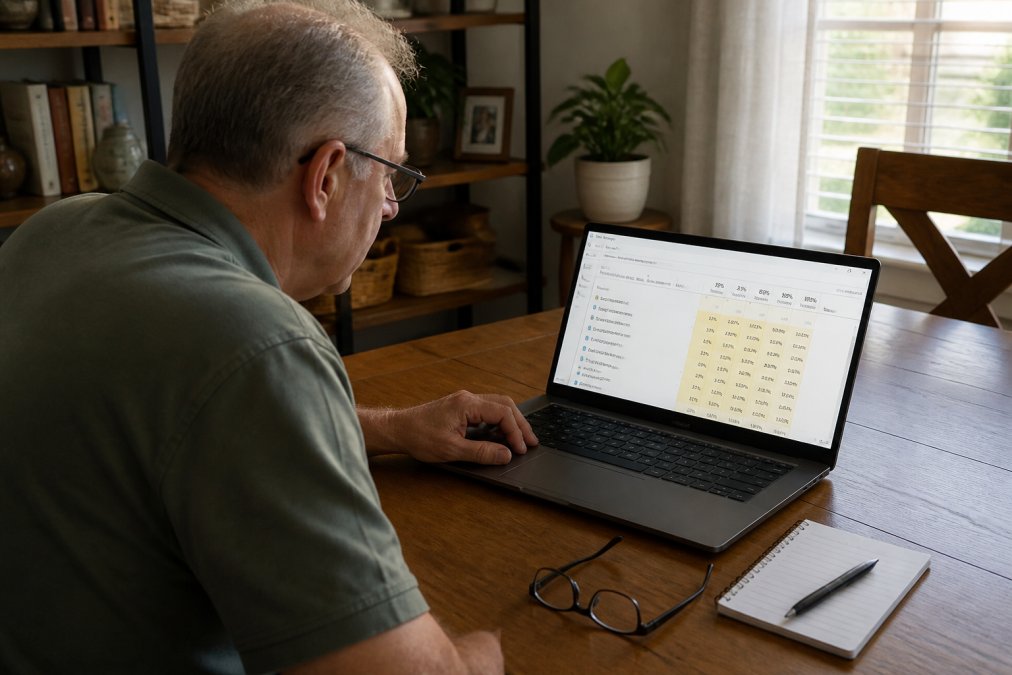
Remove Startup Programs in Windows to Cut Boot Delays
Startup items are programs that launch automatically the moment Windows loads. Every one you don't need adds seconds to boot time and keeps running in the background afterward, quietly consuming RAM and CPU. This is the single most common cause of a slow computer that used to be fast.
Here's how to remove startup programs in Windows:
- Press
Ctrl + Shift + Escto open Task Manager - Click the Startup apps tab (called "Startup" in older versions)
- Look at the Status column: anything marked "Enabled" loads at boot
- Right-click each app you don't need at startup and select Disable
- Restart and time how long the login screen takes to clear
Be conservative. Disable things you recognize and don't need immediately, like game launchers, chat apps, and updater utilities. Leave your antivirus and audio drivers alone. Disabling is reversible, so you can always turn something back on.
Background Processes, Bloatware, and Malware: What Is Eating Your Resources
Not every resource hog announces itself at startup. Bloatware, the trial software and manufacturer extras preinstalled on many store-bought PCs, often runs scheduled tasks in the background. Malware is worse: it hides, replicates, and sometimes deliberately disguises itself as a legitimate process.
Signs that malware, not ordinary bloatware, is the problem include a browser homepage you never set, new toolbars you didn't install, and fans that spin up when the machine is idle. Run a full scan with Windows Security, which is built into Windows 10 and 11 at no cost. If the scan finds nothing, open Settings > Apps > Installed apps and sort by install date. Anything you don't recognize from the past few months deserves a search before you remove it.
How to Speed Up Windows 11 With Built-In Tools
Windows 11 ships with maintenance tools that most people never open. The most useful is Storage Sense, which automatically clears temporary files and empties the Recycle Bin on a schedule you set.
To turn it on, go to Settings > System > Storage > Storage Sense and switch it to On. From the same Storage screen, click "Cleanup recommendations" to see exactly what's consuming space, including "Temporary files" and "Large or unused files." Review the list before deleting; some entries, like your Downloads folder, may contain things you want to keep.
Windows Update matters here too. Go to Settings > Windows Update and install anything pending, then restart. Updates include driver updates and performance fixes, and skipping them for months is a quiet way to slow your own machine down.
Clear Temporary Files, Cache, and Disk Space
A drive that's more than about 90% full slows everything down, because Windows needs free space as scratch room for virtual memory, update staging, and temporary files (Memory is full but not with my files and apps). The fix is straightforward, but the right cleanup depends on which type of drive you have, and most guides blur the two together.
First, identify your drive type
Open Task Manager, click the Performance tab, and select Disk. The label at the top right tells you whether it's an SSD or an HDD. You can also check Settings > System > Storage > Advanced storage settings > Disks & volumes, which lists each drive and its media type. This matters because the maintenance advice diverges sharply from here.
Cleanup steps that apply to both drive types
| What to Clear | Where to Find It | How Often |
|---|---|---|
| Temporary files | Settings > System > Storage > Temporary files | Monthly |
| Browser cache | Browser settings, Privacy section | Monthly |
| Recycle Bin | Desktop icon, right-click | Weekly |
| Downloads folder | File Explorer | As needed |
| Windows Update cache | Settings > System > Storage > Temporary files | After major updates |
Windows also keeps a hidden reserve for system restore points and the hibernation file. If you don't use hibernation, running powercfg /h off from an elevated Command Prompt reclaims several gigabytes on most machines. System restore points can be trimmed under System Properties > System Protection > Configure, where you can cap the space they're allowed to use.
If you have a traditional hard drive (HDD)
Mechanical drives store files in physical locations on spinning platters, and over time a single file gets scattered across multiple locations. Defragmentation reorganizes those fragments so the read head travels less. Windows runs this automatically on a schedule, but you can trigger it manually: search "Defragment and Optimize Drives" in Start, select your HDD, and click Optimize. On a heavily used drive, this can meaningfully improve app launch times. Running it more than once a month is rarely necessary.
If you have a solid-state drive (SSD)
Do not defragment an SSD (" Defragment and Optimise Drives "). There are no moving parts to reorganize, and the process writes data unnecessarily, which consumes the drive's limited write cycles and shortens its lifespan. Windows knows this and runs a different process called TRIM instead, which tells the drive which blocks of data are no longer needed so it can manage them efficiently. TRIM runs automatically; you can confirm it's enabled by opening an elevated Command Prompt and typing fsutil behavior query DisableDeleteNotify. A result of 0 means TRIM is active. A result of 1 means it's disabled and should be re-enabled.
Check drive health before you blame software
A failing drive produces the same symptom as a full one: everything gets slower. Open an elevated Command Prompt and run chkdsk C: /scan to check for file system errors without locking the drive. For a deeper look at the physical health of the drive, download the free CrystalDiskInfo utility, which reads the drive's own SMART data and reports a status of Good, Caution, or Bad. A Caution or Bad status means the drive is on its way out and no amount of cleanup will fix the slowdown. Back up your data immediately and plan a replacement.
Heat, Dust, and Thermal Throttling: When Hardware Health Is the Problem
If your computer is slow specifically when it's been running a while, or when the room is warm, heat is the likely cause. Thermal throttling is a safety response where the processor deliberately reduces its own speed to avoid damage from overheating. The machine isn't broken; it's protecting itself, and the fix is usually physical.
Dust is the usual culprit. Vents and fans clog over time, especially in homes with pets. Power down, unplug, and use short bursts of compressed air to clear the intake and exhaust vents. For a desktop, opening the case and clearing the heatsink makes a bigger difference, though if you're not comfortable doing that, a local technician can handle it in a single visit.
You can check whether throttling is happening by watching your CPU speed in Task Manager's Performance tab while the machine is under load. If the speed drops well below its normal range while temperatures climb, heat is your bottleneck.
When to Upgrade Computer Hardware Instead of Troubleshooting
Software fixes have limits. The question is how to know when you've hit them. The answer comes from Task Manager's Performance tab, not from the age of the machine alone. Open it with Ctrl + Shift + Esc, click Performance, and watch the four graphs while you do the tasks that feel slow.
Read the bottleneck, not the calendar
| What the graph shows | What it means | What to do |
|---|---|---|
| Memory pinned near 100% during normal use | RAM is the limit | Add RAM if the machine supports it |
| Disk at 100% with low CPU and memory | Drive is the limit | Replace HDD with SSD, or replace a failing drive |
| CPU pinned near 100% during basic tasks | Processor is the limit | Usually time for a new machine |
| CPU speed drops well below its rated range under load | Thermal throttling | Clean dust, replace thermal paste, or improve airflow |
A machine that shows the first two patterns is a strong upgrade candidate. A machine that shows the third is usually not worth repairing, because replacing a CPU means replacing the motherboard and often the RAM alongside it, which approaches the cost of a new system.
The RAM decision
If Task Manager shows memory consistently above 80% during your normal workload, adding RAM helps. Check how many slots your machine has and how many are occupied before buying anything; a laptop with two slots and one 8GB stick can often go to 16GB cheaply, while a machine with soldered RAM cannot be upgraded at all. The manufacturer's spec sheet or a tool like CPU-Z will tell you. Match the speed and type of the existing stick where possible.
The drive decision
The single most effective upgrade for an aging computer is swapping a mechanical hard drive for a solid-state drive. A SATA SSD reads at speeds a spinning drive cannot match, and the difference shows up in boot times, app launches, and file transfers. If your machine already has an SSD and still feels slow, the drive is not your bottleneck and replacing it will not help.
The age and cost threshold
If the machine is more than five or six years old, still has a mechanical hard drive, and has 8GB of RAM or less, the cost of upgrading all three components often approaches the price of a new entry-level machine. In that case, a new system is usually the better value. If the machine is newer, or if only one component is the bottleneck, a targeted upgrade is the cheaper path.
What not to upgrade
A faster GPU will not fix a slow computer that is slow during web browsing and email. Graphics cards only help with gaming, video editing, and 3D work. Likewise, a new power supply or case does nothing for performance. Spend money only on the component the Performance tab identifies as the bottleneck.
If you'd rather not diagnose any of this yourself, TonyV's Tech Repair offers a Basic Repair Service starting at $25 that includes expert diagnosis and a plain-English explanation of what's wrong, with most issues resolved in a single session. For a machine that won't boot or a drive that's failing, the Emergency/Same-Day Repair option prioritizes your device. And if you'd simply like someone to keep an eye on things, the Monthly Tech Support Plan covers unlimited questions by text or call plus priority scheduling.

Frequently Asked Questions
How do I find out what is slowing down my PC?
Open Task Manager by pressing Ctrl + Shift + Esc and click the Processes tab. Sort by CPU, Memory, and Disk usage to see which programs are consuming the most system resources. Anything consistently high is worth investigating. Check the Startup tab next, since programs set to launch at boot can add minutes to your startup time. If the same unknown process keeps climbing, it may be malware or a memory leak rather than normal use.
Does a full hard drive make a computer slow?
Yes. When your hard drive capacity is nearly full, Windows has less room to write temporary files and manage virtual memory, which causes lag and longer load times. Keep at least 15 to 20 percent of your drive free. Run Disk Cleanup to remove temporary files and old updates, then uninstall programs you no longer use. If your drive is small, moving photos and videos to an external drive frees space quickly.
How do I remove startup programs in Windows?
Press Ctrl + Shift + Esc to open Task Manager, then click the Startup apps tab. You will see a list of everything that launches when Windows boots, along with its startup impact rating. Right-click any program you do not need at startup and select Disable. Good candidates include cloud-syncing services, chat apps, and updaters. Restart your computer afterward and check whether boot times improve. You can always re-enable an item later.
When should I upgrade computer hardware instead of troubleshooting?
If software cleanup, driver updates, and disk cleanup do not fix the slowdown, the hardware is likely the bottleneck. Signs include a mechanical hard drive still in use, 4GB of RAM or less, or a computer that runs hot and throttles under load. Swapping a traditional hard drive for a SATA III SSD is the single biggest speed upgrade for older machines, often cutting boot times from minutes to seconds.